How to Crop Photos Online: Complete Guide 2026
Learn how to crop photos online for free with precision. Remove unwanted edges, adjust social media aspect ratios, and export in high quality without installing anything.
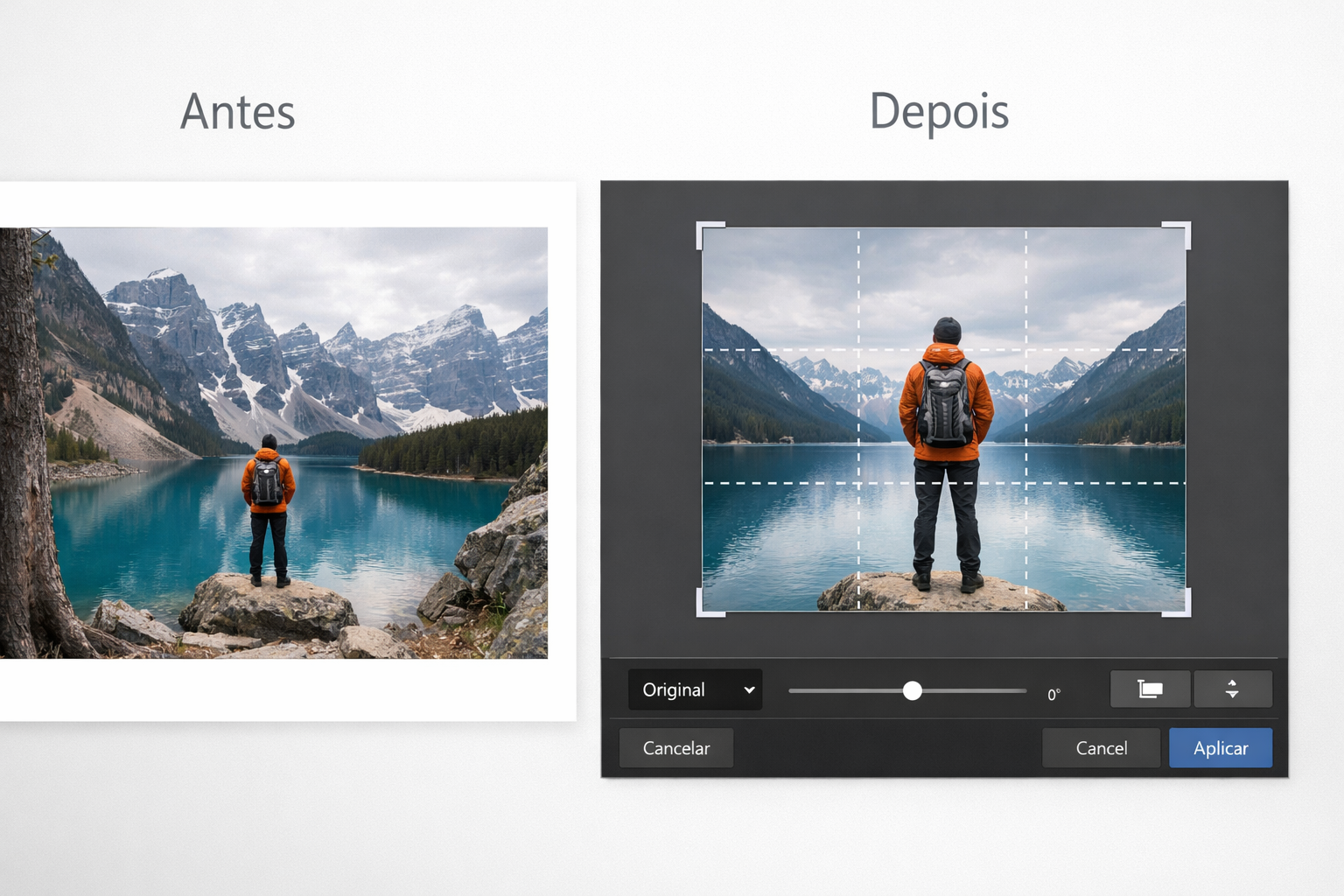
Table of Contents
What Does it Mean to Crop a Photo?
To crop photos online is one of the most common edits in the digital world — and also one of the most important. Whether you need to trim an image for Instagram, adjust a photo for an ID document, prepare products for e-commerce, or simply improve the composition of a shot, finding the right crop completely transforms the final result.
Unlike resizing (which changes the size while keeping everything visible), cropping permanently removes the selected edges, improving composition, focusing on the main subject, and ensuring fitness for different screen formats.
With PhotoEditor.Studio, you can crop any image directly in your browser — no installation, no watermarks, and total privacy, as your photos never leave your computer.
Why Is Cropping Photos So Important?
Before diving into the step-by-step, it's worth understanding the main reasons why cropping is one of the most used tools in image editing:
- Photographic Composition: A photo taken in a hurry almost always includes unnecessary edges, unwanted objects, or a tilted horizon. Cropping fixes all of this without needing to retake the shot.
- Social Media Optimization: Each platform requires specific aspect ratios. An Instagram feed post needs 1:1 or 4:5; a Story needs 9:16; a YouTube thumbnail is 16:9. Cropping to the right ratio is essential so your photo doesn't look distorted or get automatically cut off by the platform.
- Subject Focus: Bringing the main subject closer — whether it's a person, a product, or a detail — increases visual impact and viewer attention.
- Documents and Forms: ID photos, passports, and form submissions often require exact dimensions. Cropping allows for precision adjustments.
- E-commerce: Products photographed with messy backgrounds or poor framing sell less. Correct cropping highlights the product and standardizes your catalog.
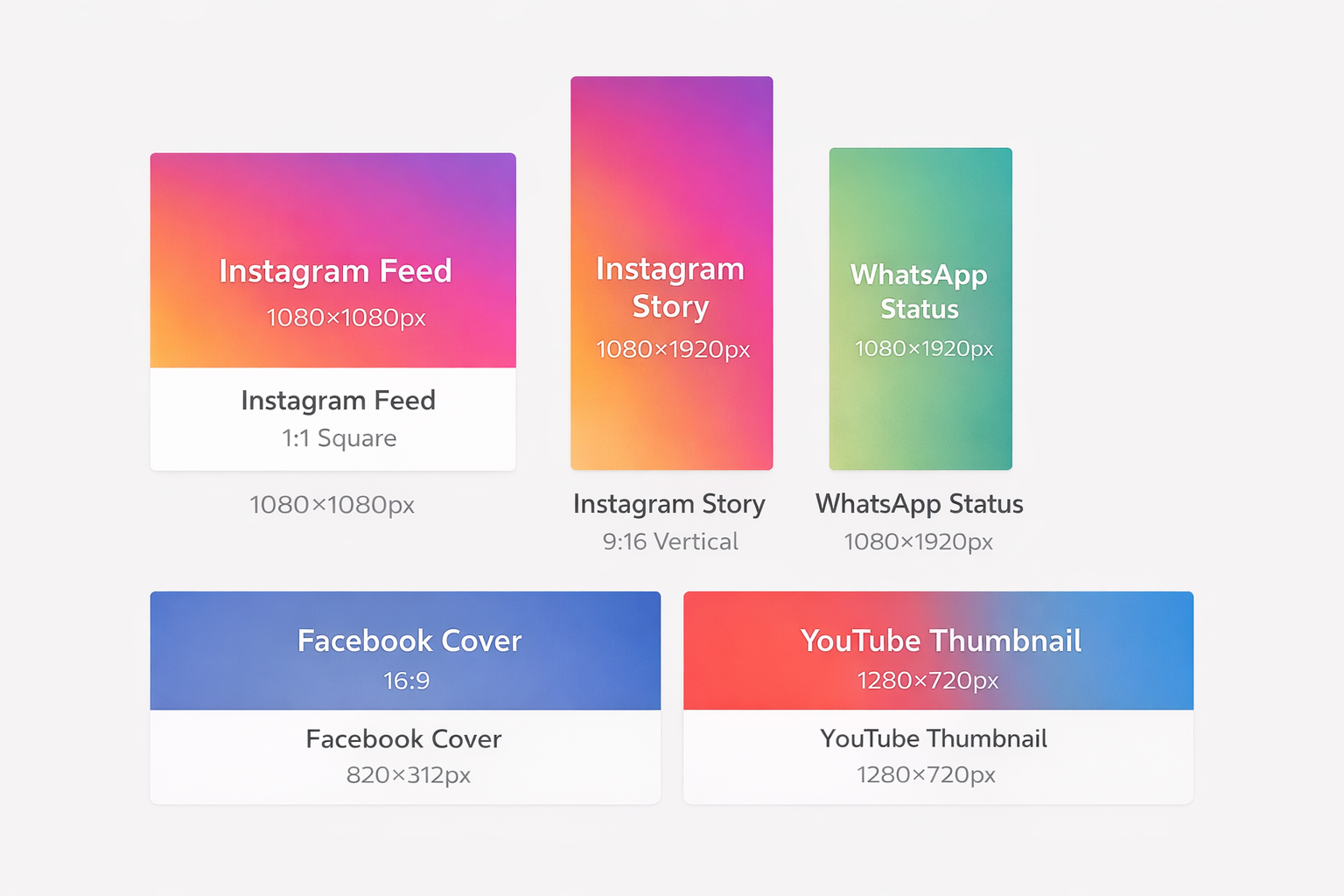
The various aspect ratios required by modern social platforms
How to Crop Photos Online with PhotoEditor.Studio: Step-by-Step
The whole process takes less than 1 minute. Here's how it works:
Step 1: Open the Editor and Import Your Photo
Go to PhotoEditor.Studio and import your image in one of these ways:
- Drag and drop the file directly into the editor area
- Click "Select Images" to open the file explorer
- Supports JPEG, PNG, WEBP, and GIF
💡 Tip: You can import multiple photos at once for batch editing. All adjustments, including cropping, can be applied in sequence.
Step 2: Access the Crop Tool
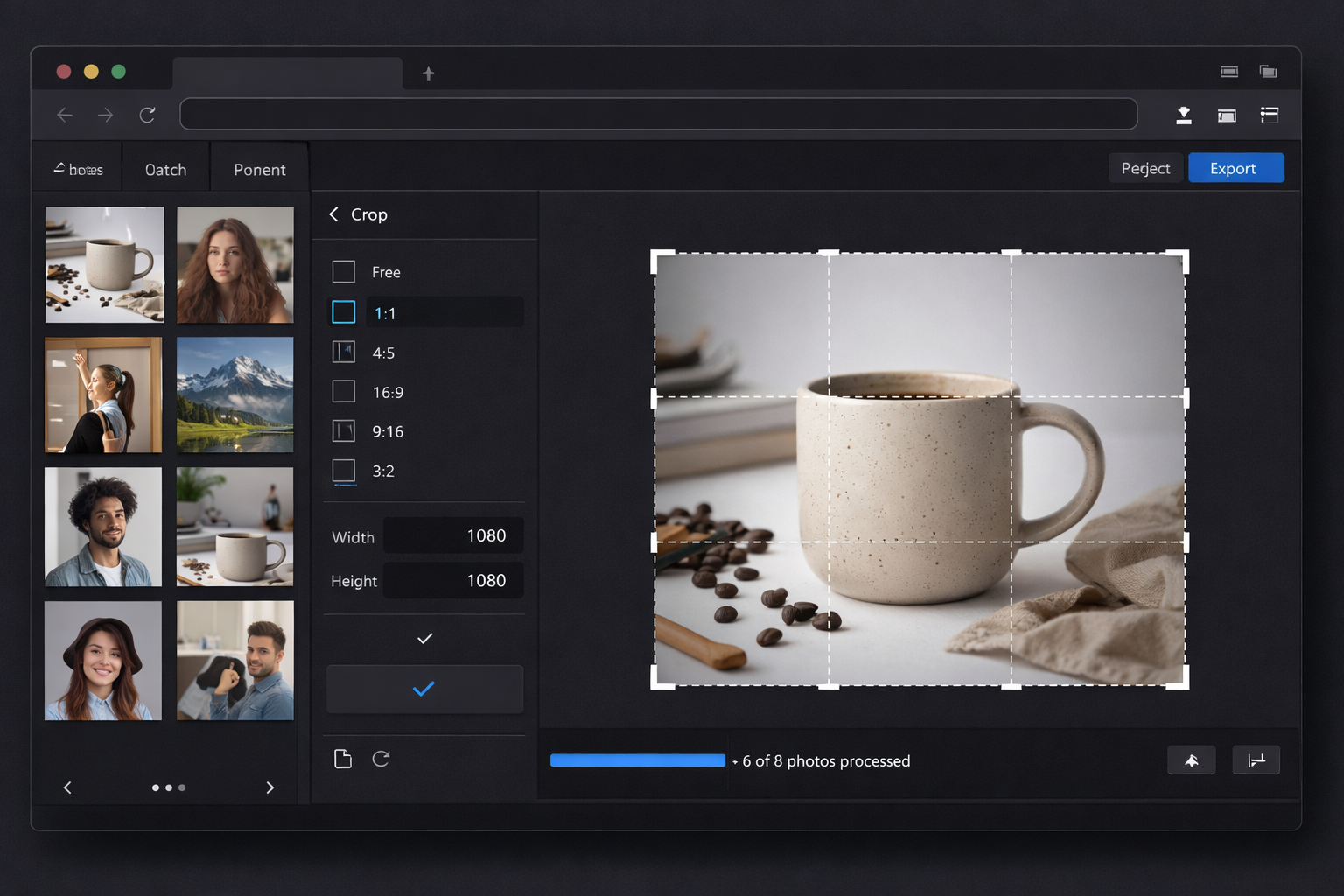
In the side panel, find and click the "Crop & Frame" tool (scissors or crop icon). A selection grid will appear over your image, with handles on the corners and sides.
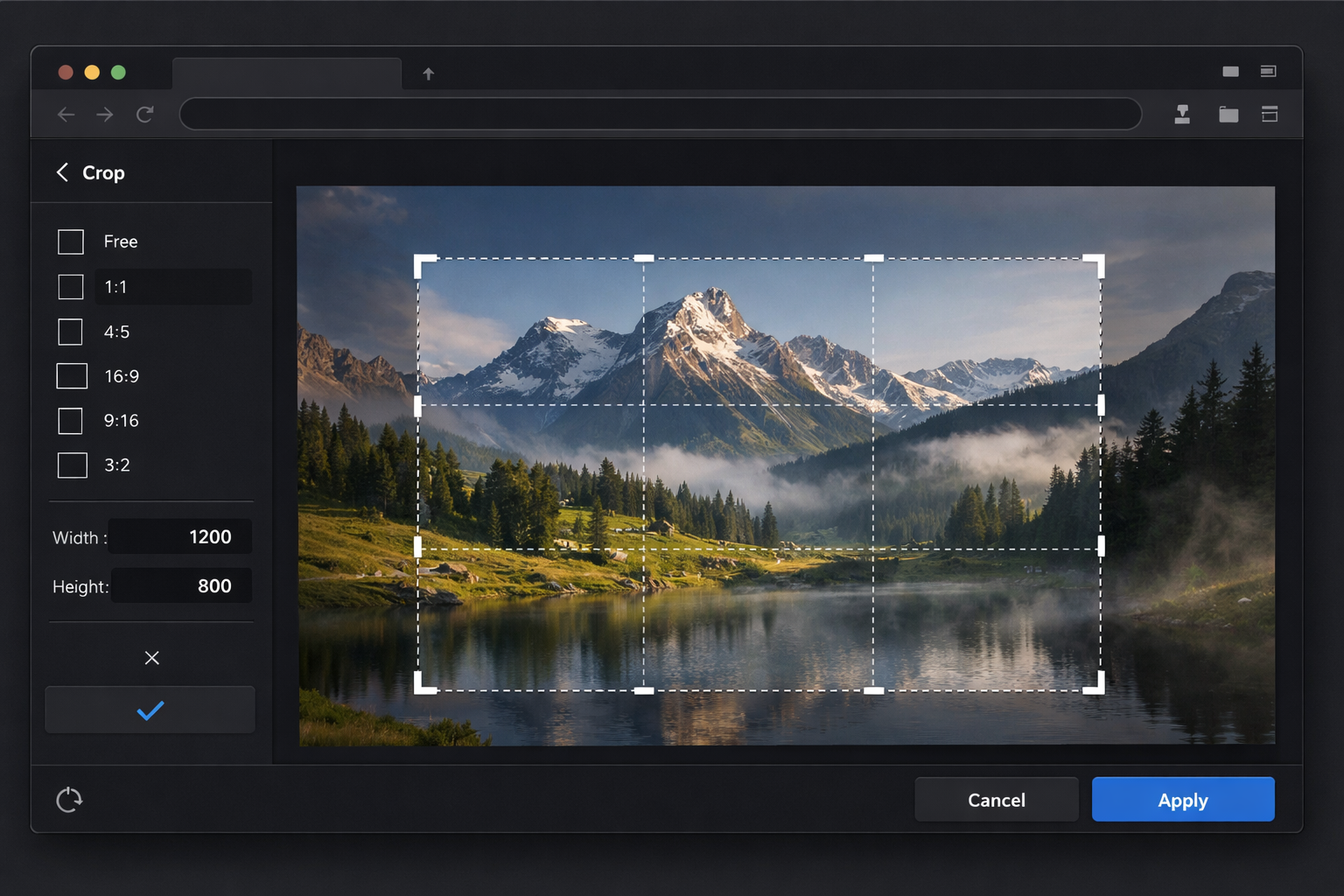
Step 3: Choose Aspect Ratio or Go Freeform
You have two options when cropping:
- Freeform: Drag the handles to any size and shape you want. Ideal for quickly removing edges without worrying about a specific ratio.
- Fixed Aspect Ratio: Select one of the presets from the side menu:
| Ratio | Best Use Case |
|---|---|
| 1:1 (Square) | Instagram Feed, Avatars, WhatsApp |
| 4:5 (Portrait) | Vertical Instagram Feed |
| 9:16 (Vertical) | Stories, Reels, TikTok, Shorts |
| 16:9 (Landscape) | YouTube, Presentations, Twitter |
| 3:2 | Standard Photo Printing |
Step 4: Position and Adjust Your Selection
With the grid active, you can:
- Move the selection area by clicking and dragging inside it
- Resize by pulling the corner handles
- Preview in real-time exactly how the final photo will look
Use the rule of thirds as a guide: place your main subject at the intersection of the grid lines for a more compelling composition.
Step 5: Confirm and Export
Once you're happy with the framing:
- Click "Confirm Crop" (check icon ✓)
- Review the result on the canvas
- Click "Export" to download
- Choose your format: JPEG, PNG, or WEBP
Professional Tips for Perfect Cropping
Rule of Thirds
Avoid centering everything. Place a person's eyes or a mountain peak at one of the grid intersections to create more dynamic interest.
Breathing Space
Always leave a bit more space in the direction your subject is looking. This prevents the image from feeling too cramped.
High Res Focus
Always crop the original high-resolution image first. Only resize to your final dimensions after cropping to maintain maximum sharpness.
Joints & Limbs
In portraits, never crop at joints (neck, wrists, knees). Crop in the middle of limbs for a much more natural and flattering look.
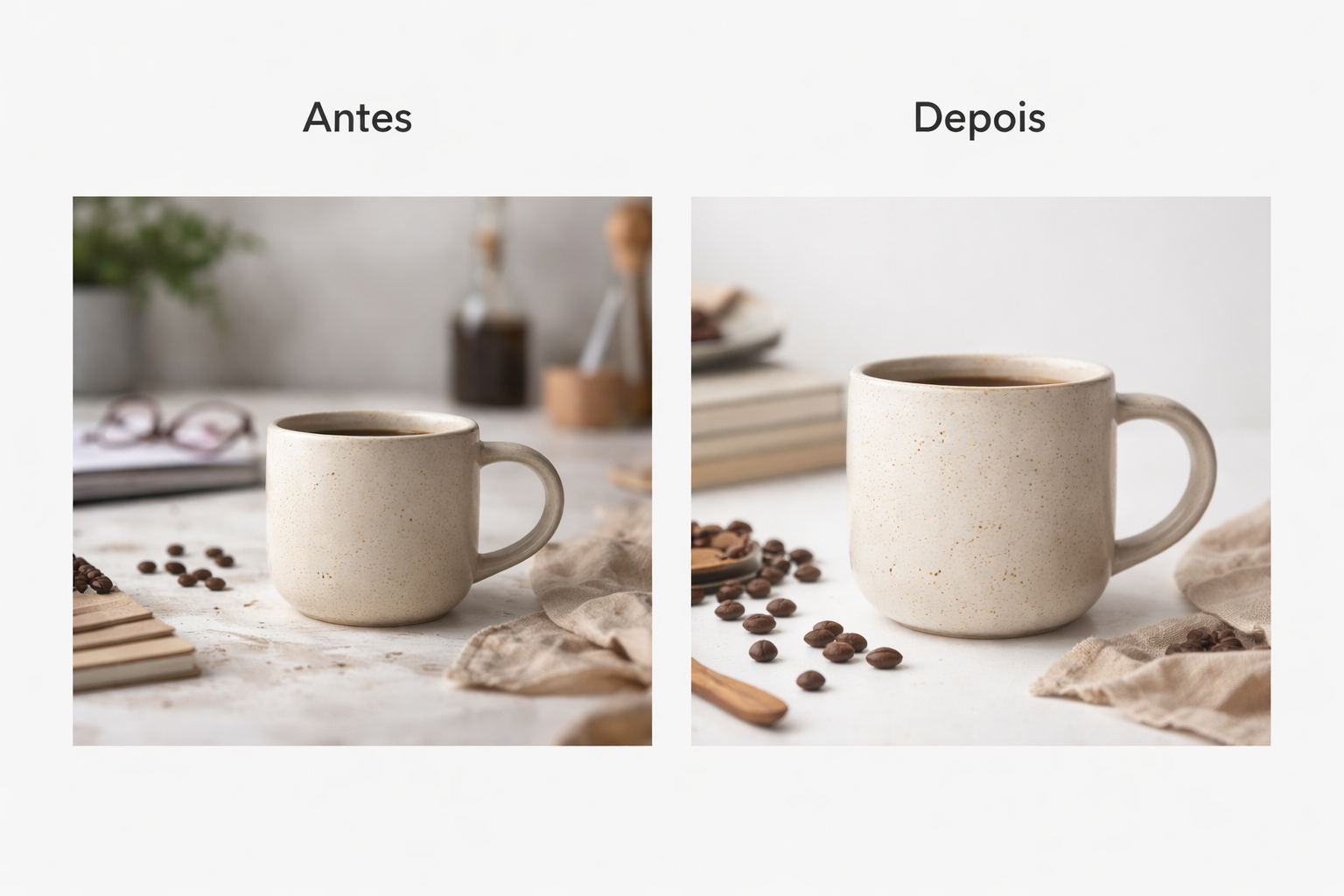
Practical example of how cropping adds value to products for online sales
How to Crop Photos for Documents Online
ID document photos such as passports, driver's licenses, and visas require specific dimensions and proportions depending on the issuing authority. Cropping and trimming the photo correctly before submission prevents rejections and saves you time.
The most common aspect ratios for official documents are:
| Document Type | Aspect Ratio | Common Size |
|---|---|---|
| Standard ID / License | 3:4 | 300×400 px |
| US Passport / Visa | 1:1 | 2×2 inches (600×600 px) |
| European Passport | 3.5:4.5 | 35×45 mm |
| Online Forms | Freeform / JPG | Max. 2 MB |
To crop a photo for a document in PhotoEditor.Studio, select the correct ratio from the crop menu, position your face directly in the center, leave a small amount of space above your head, and export it as a JPEG with a plain white or neutral background.
Batch Editing: Edit Multiple Photos at Once
One of PhotoEditor.Studio's biggest advantages for photographers and store owners is batch editing. Instead of opening and cropping each photo individually, you can:
- Import dozens of images at once
- Set your crop preset (ratio and position)
- Apply it to all selected photos
- Export the entire batch as a ZIP
Supported Formats for Cropping and Exporting
PhotoEditor.Studio accepts and exports all major image formats used today:
PhotoEditor.Studio vs Other Tools
| Feature | PhotoEditor.Studio | Other Editors |
|---|---|---|
| 100% Free | Yes | Often Limited |
| No Watermark | Always | Requires Premium |
| Privacy (Local) | Private | Server Uploads |
| Batch Editing | Unlimited | Rarely Free |
Frequently Asked Questions About Online Cropping
Does cropping reduce image quality?
Cropping only selects a portion of the image. If you crop a very small area from a low-resolution photo, the result will look less sharp when enlarged. We recommend always using the highest available original resolution.
Can I undo a crop after exporting?
Once you export and leave the editor, the action is permanent for the saved file. However, within your active editing session in the browser, you can undo any adjustment at any time.
Does PhotoEditor.Studio upload my photos to a server?
No. All processing happens locally on your computer. Your photos are never sent to our servers, ensuring your total privacy and security.
How many photos can I crop per day?
There are no limits. You can use the tool as many times as you like, for any number of photos, with no restrictions.
Does it work on mobile?
Yes! The site is fully responsive and optimized for mobile browsers on Android and iOS.
Do I need to create an account?
No. PhotoEditor.Studio is free to access. Just enter, edit, and download your photo without any signup required.
Ready to Crop Your Photos for Free?
Try the fastest and most private professional crop tool on the web right now.
Open Free Photo Editor →Related Tools and Articles
- Complete Online Photo Editor — edit, apply filters, and export your images
- PhotoEditor.Studio Blog — tutorials and photo editing guides
Need more than just cropping? Access the complete online photo editor to adjust brightness, contrast, saturation, and apply filters — all for free, in batch, straight from your browser.