Batch Photo Editing Online: Edit Multiple Photos at Once (Free)
Learn how to edit dozens of photos at the same time with PhotoEditor.Studio's free batch editing. Apply filters, crop, and adjust colors across multiple images at once — no software needed.
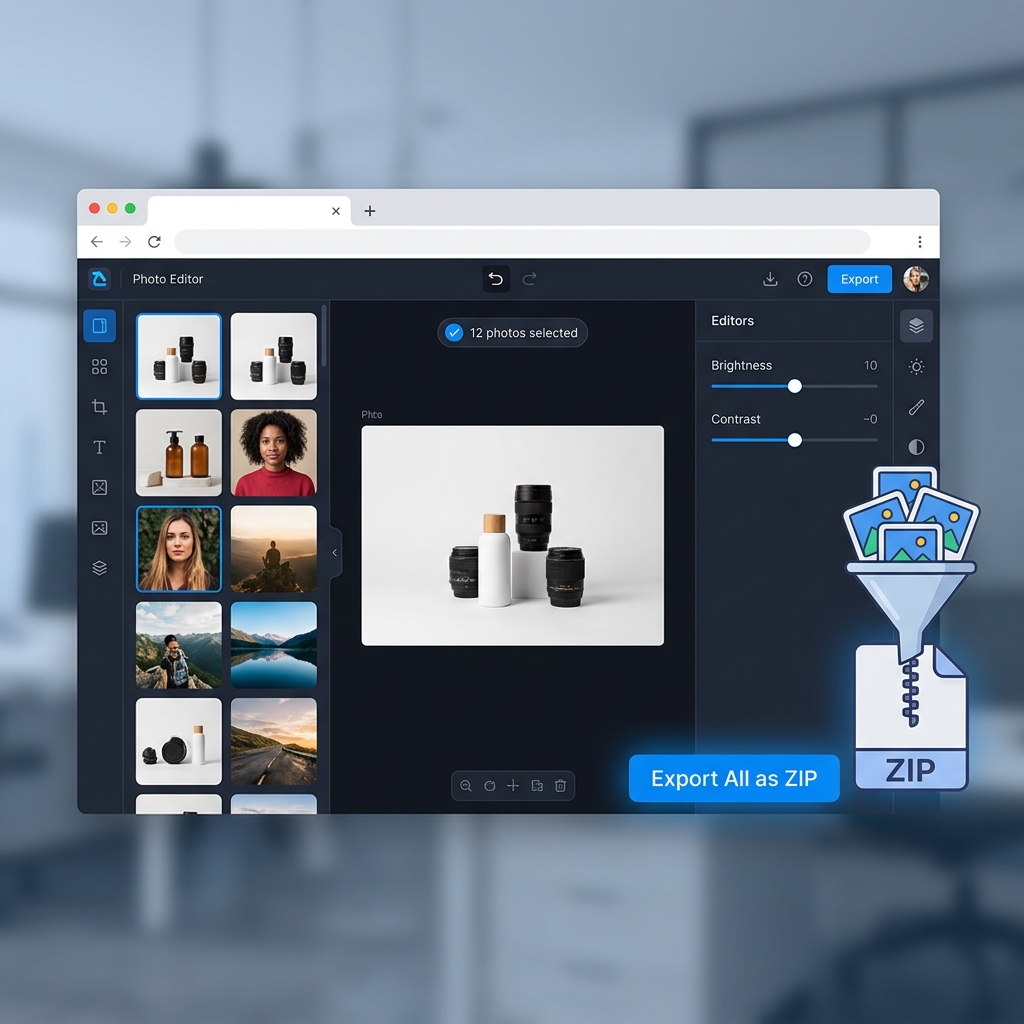
Table of Contents
What Is Batch Photo Editing?
Batch photo editing is the ability to apply the same adjustments to multiple images at once, rather than opening, editing, and saving each photo individually. Instead of repeating the same steps dozens of times, you select a set of images, configure your settings once, and apply everything in a single action.
The practical result: work that used to take hours gets done in minutes.
PhotoEditor.Studio offers free batch photo editing directly in your browser — no software installation required. Import as many photos as you need, configure your adjustments, and export everything as a ZIP file — with complete privacy, since no image is ever sent to an external server.
Why Batch Editing Makes a Real Difference
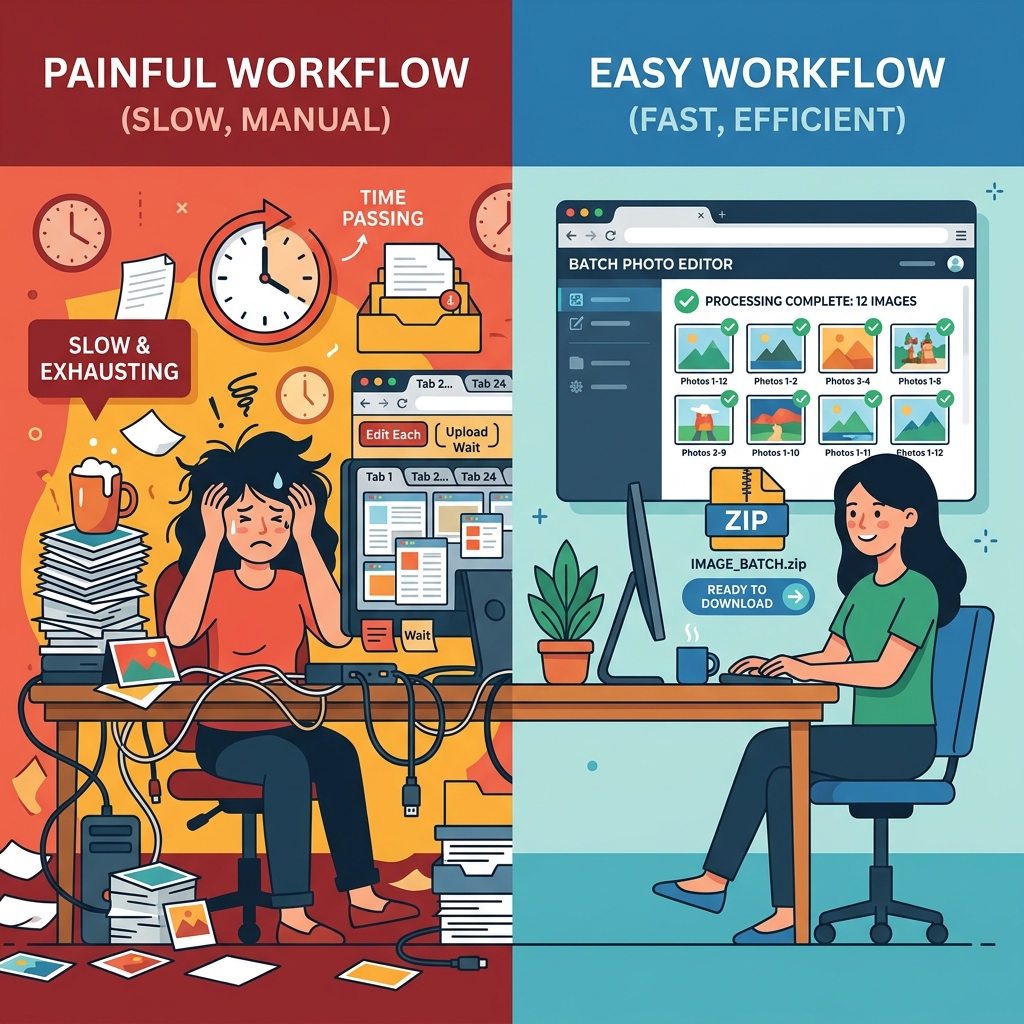
Picture this: you have 60 product photos from the same shoot. Every single one needs the same square crop, the same brightness boost, and the same filter applied. Editing them individually means at least 3 clicks per photo plus export time — easily 45 minutes to an hour of pure repetition.
With batch editing, that same task takes under 5 minutes.
But the advantage goes beyond speed:
- Visual consistency: When you apply identical adjustments to every photo in a collection, the result is a cohesive visual identity — essential for e-commerce catalogs, photography portfolios, and social media feeds.
- Fewer mistakes: Manual repetitive editing is error-prone. It's easy to forget a step or apply slightly different values across photos. Batch mode eliminates that variation.
- Professional workflow: Professional photographers have used batch editing in Lightroom and Capture One as a core part of their workflow for decades. Now that same capability is available free in any browser.
- Scalability: Whether you're processing 10 photos or 500, the tool handles it the same way — no extra cost, no upgrade required.
How to Edit Photos in Batch Online: Step by Step
The complete process takes under 5 minutes for dozens of photos. Here's how it works:
Step 1: Import All Your Photos at Once
Open PhotoEditor.Studio and bring in your images:
- Drag an entire folder directly onto the editor — every photo inside will be imported at once
- Click "Select Images" and pick multiple files using Ctrl+A (or Cmd+A on Mac)
- Supports JPEG, PNG, WEBP, and GIF — mixed formats in the same batch are fine
After importing, your photos appear as thumbnails in the side panel. Select all with one click, or handpick a specific subset.
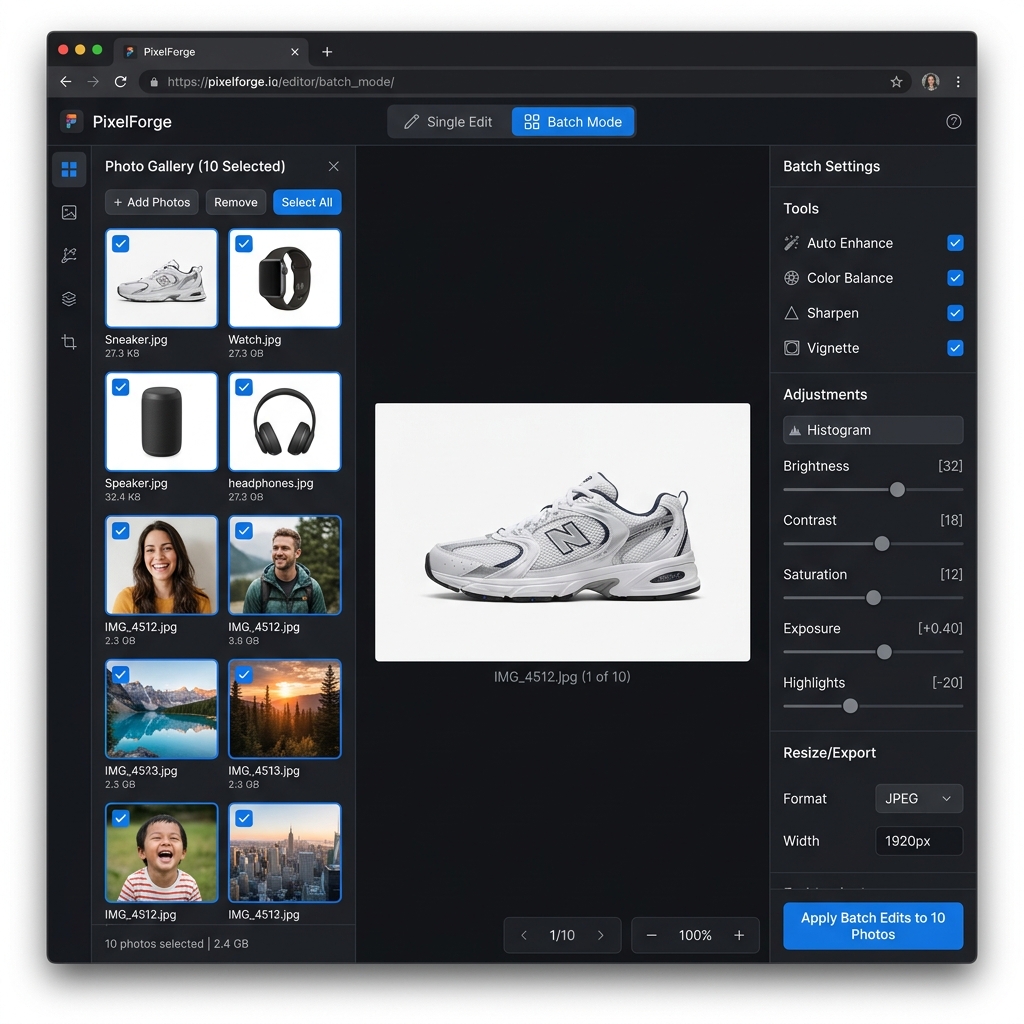
💡 Tip: There's no quantity limit. Import 5, 50, or 500 photos — the editor processes everything locally, with no server-side bottleneck.
Step 2: Configure Your Adjustments Once
With your photos imported and selected, dial in the settings in the editing panel. Enable "Apply to all selected photos" mode and set whatever you need:
- Crop ratio — 1:1, 4:5, 9:16, 16:9, or custom
- Brightness and contrast — with sliders from -100 to +100
- Saturation and vibrance — for color intensity control
- Filters and visual presets — vintage, cinematic, B&W, warm tones, etc.
- Noise reduction — especially useful for smartphone photos in low light
- Vignette — to focus attention toward the center of each image
- Film grain effect — for an analog, artistic aesthetic
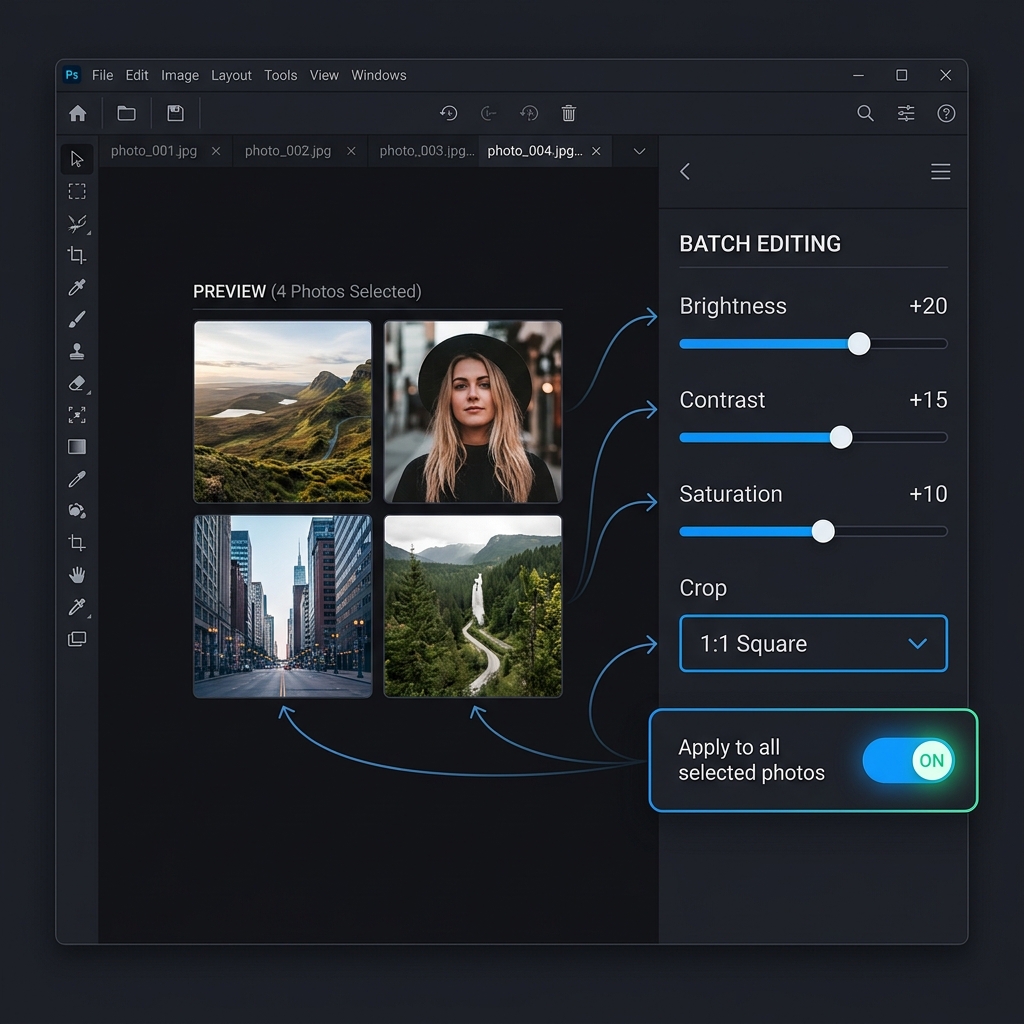
💡 Pro tip: Open one representative photo from the batch, tune your settings until you're happy, then switch on batch mode. This ensures your values are calibrated to the actual content, not a guess.
Step 3: Export Everything as a Single ZIP
Once your settings are ready:
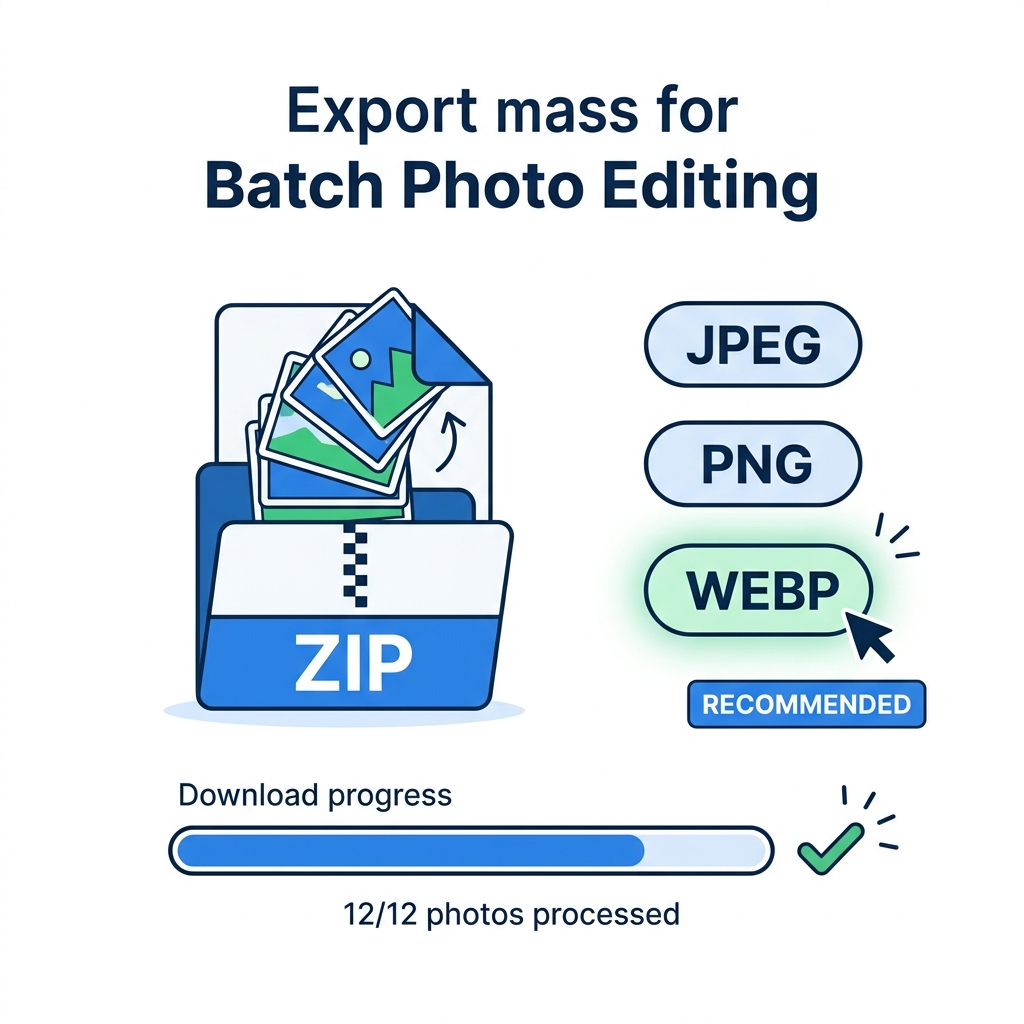
- Click "Export Batch"
- Choose your output format: JPEG, PNG, or WEBP
- The editor processes all images locally, in sequence
- A single ZIP file downloads with all your edited photos, named and ready to use
No photo ever leaves your computer. All processing happens in your browser, on your own hardware.
What You Can Do in Batch Mode
PhotoEditor.Studio's batch editing covers the core image adjustment needs:
| Adjustment | Available in Batch | Notes |
|---|---|---|
| Crop with fixed ratio | ✅ Yes | 1:1, 4:5, 9:16, 16:9, custom |
| Brightness & Contraste | ✅ Yes | Independent sliders |
| Saturation & Vibrance | ✅ Yes | Separate channel control |
| HSL Panel (individual colors) | ✅ Yes | Hue, saturation and luminance |
| Filters & Presets | ✅ Yes | All available filters |
| Noise Reduction | ✅ Yes | Adjustable intensity |
| Vignette | ✅ Yes | Adjustable intensity |
| Film Grain Effect | ✅ Yes | For analog aesthetic |
| Custom resize | ✅ Yes | Width and height |
| Export format | ✅ Yes | JPEG, PNG or WEBP |
Who Benefits from Batch Editing
E-Commerce Store Owners
Standardizing product photos is one of the most repetitive tasks in online retail. With batch editing, you can:
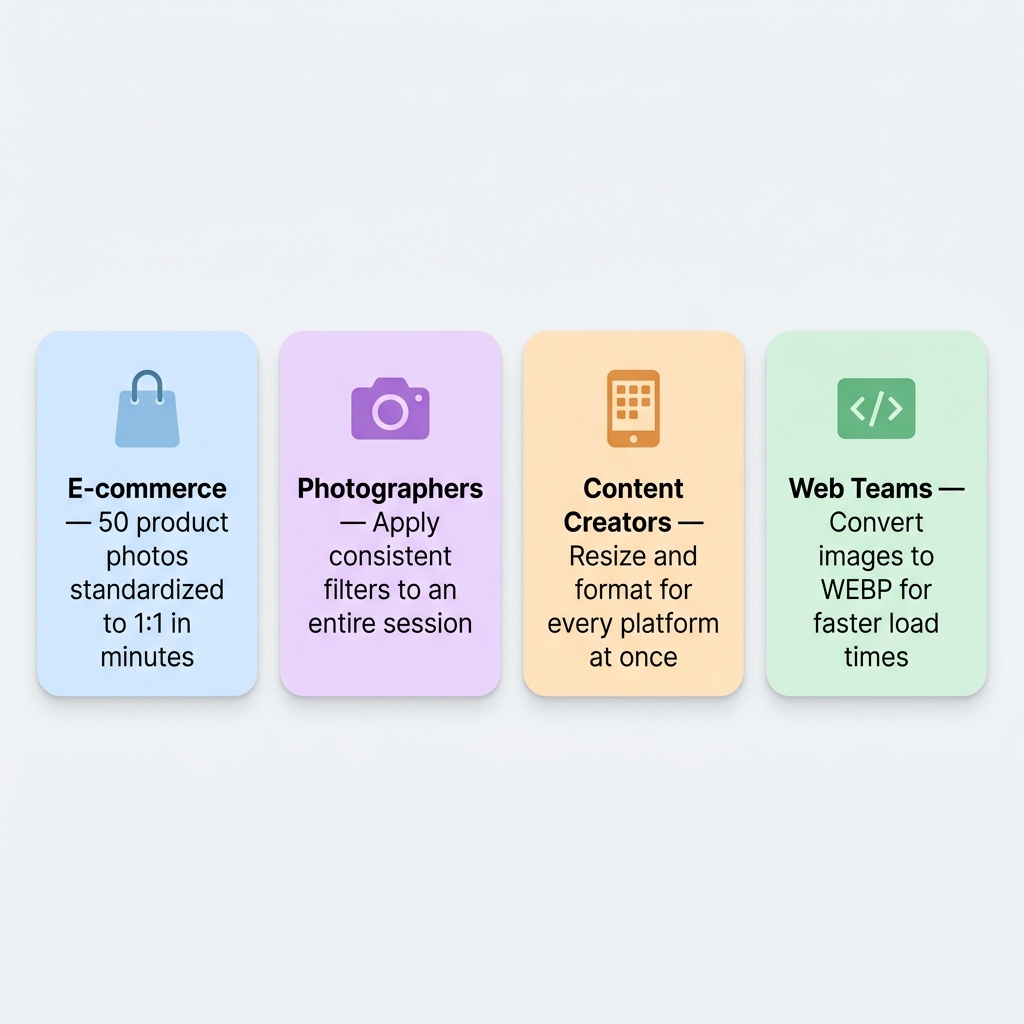
- Crop every product photo to the square (1:1) format required by most marketplaces
- Fix exposure inconsistencies between different shooting sessions
- Convert your entire catalog to WEBP to speed up your store's page loading time
- Process new products in minutes, not hours
Professional and Amateur Photographers
After a photo session, editing hundreds of converted JPEGs can be exhausting. Batch editing lets you:
- Apply the same color preset and contrast adjustment to an entire session
- Ensure exposure consistency across photos taken under changing lighting conditions
- Prepare multiple output sizes (social media, print, portfolio) simultaneously
Content Creators and Influencers
A consistent visual aesthetic on Instagram, Pinterest, or TikTok is a real competitive edge. With batch editing, you can:
- Apply the same filter and color grade to all photos from a content week in one shot
- Export in the correct format and ratio for each platform in a single workflow
- Cut content production time so you can focus on the creative side
Web and Marketing Teams
Optimized images directly impact site performance. With batch editing, you can:
- Convert an entire image library from JPEG to WEBP, reducing file sizes by up to 30%
- Standardize banner and thumbnail dimensions for your design system
- Process catalog updates without paid software or a dedicated design resource
Free Batch Editing vs. Paid Alternatives
| Feature | PhotoEditor.Studio | Adobe Lightroom | Canva Pro | ImageMagick |
|---|---|---|---|---|
| 100% Free | ✅ Always | ❌ ~$10/month | ❌ ~$15/month | ✅ Free |
| Visual interface | ✅ Simple & visual | ✅ Professional | ✅ Visual | ❌ Command line |
| No installation | ✅ Browser-based | ❌ Desktop/app | ✅ Browser-based | ❌ Requires install |
| Local privacy | ✅ Full | ⚠️ Cloud sync | ❌ External server | ✅ Local |
| Filters & presets | ✅ Included | ✅ Advanced | ✅ Many options | ❌ Manual scripts |
| Learning curve | ✅ Very low | ⚠️ Moderate | ✅ Low | ❌ High |
For the vast majority of use cases — e-commerce, social media, entry-level to mid-level photography — PhotoEditor.Studio delivers exactly what you need, without the cost or complexity.
Frequently Asked Questions About Batch Editing
Is there a limit on how many photos I can process per batch?
No. You can import and process as many photos as you need in a single batch. The only practical limit is the RAM available on your device. For very large batches (300+ high-resolution photos), we recommend using a computer with at least 8GB of RAM.
Does batch mode work with photos of different sizes and resolutions?
Yes. The editor accepts photos with different dimensions and resolutions in the same batch. Adjustments like brightness, contrast, and filters are applied relative to each individual image. For cropping, you set the ratio and the editor adapts to each photo while preserving the central composition.
Do the exported photos have watermarks?
Never. PhotoEditor.Studio does not add watermarks to any export — whether individual or batch. All images are exported clean and at their original resolution.
Can I mix JPEG and PNG files in the same batch?
Yes. You can import mixed formats (JPEG, PNG, WEBP, GIF) in the same batch. At export, you choose a single output format for all files.
Is processing fast even for large batches?
Yes. Since processing is done locally using your own computer's resources (CPU and GPU via Web Workers), speed depends on your hardware. On a modern computer, 30 to 50 JPEG photos are typically processed in under 2 minutes.
Are my photos stored on your platform?
No. No image is sent to our servers at any point — not during import, processing, or export. Everything happens locally in your browser. When you close the tab, the session images are cleared from memory.
Ready to Edit Your Photos in Batch — For Free?
Try it now and see the difference batch editing makes in your workflow.
Open Free Photo Editor →