( Free · in the browser · no sign-up )
Batch edit photos in your browser.
Same edits. Every photo. Copied settings. One ZIP. Retry only failures.
Open multiple images, select a batch, apply adjustments and export the results in a ZIP file.
You can also drag and drop one or multiple images in this area.•Accepted inputs: JPEG, PNG, WEBP, GIF and BMP when the browser can decode them. Export is available as JPEG and PNG, and as WEBP when the browser supports that encoding.
Image editing runs in the browser. The site can still make technical requests and, subject to your consent, load measurement or advertising. Read the Privacy Policy.
- 01No installation
- 02In-browser editing
- 03Preview before export
- 04No sign-up
( How it works )
Edit a batch in 3 steps
- ( 01 / 03 )
1. Load multiple images
Choose compatible files; invalid items are reported without discarding valid neighbors.
- ( 02 / 03 )
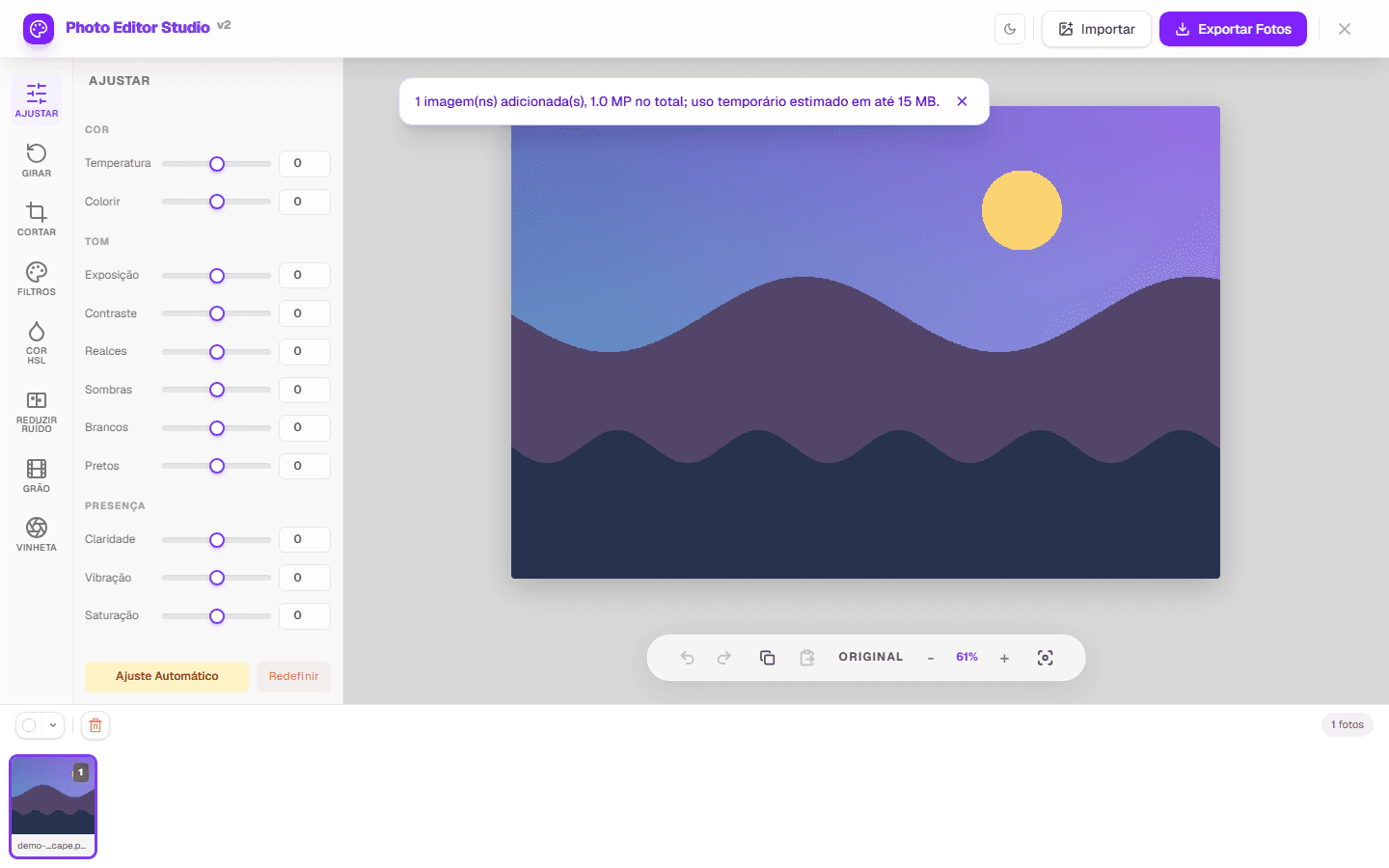
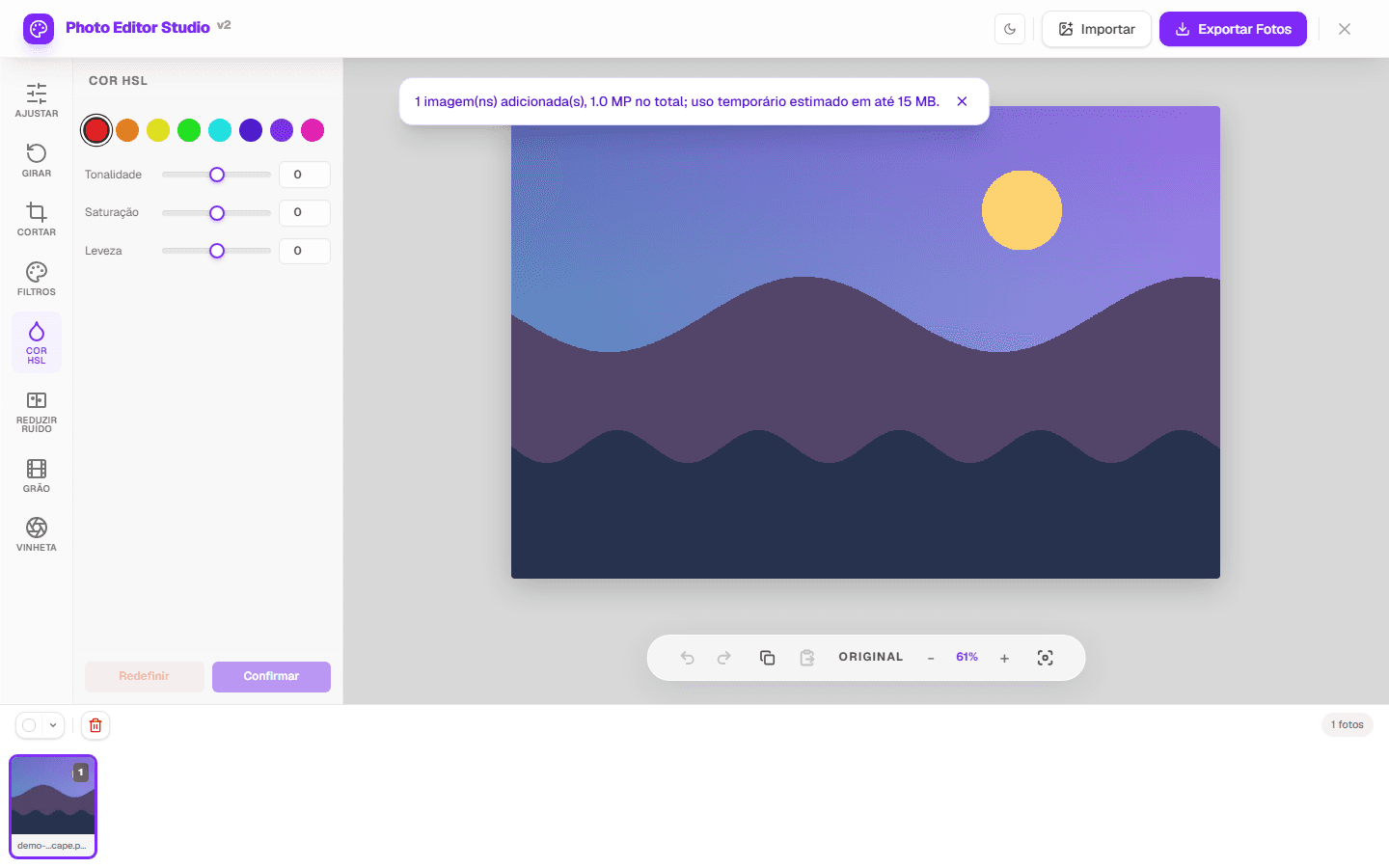
2. Select and adjust
Select all or part of the gallery, then apply or copy settings and review results.
- ( 03 / 03 )
3. Export the batch
Choose JPEG or PNG — or WEBP when the browser supports it — and optional resize settings; multiple outputs are bundled as ZIP.
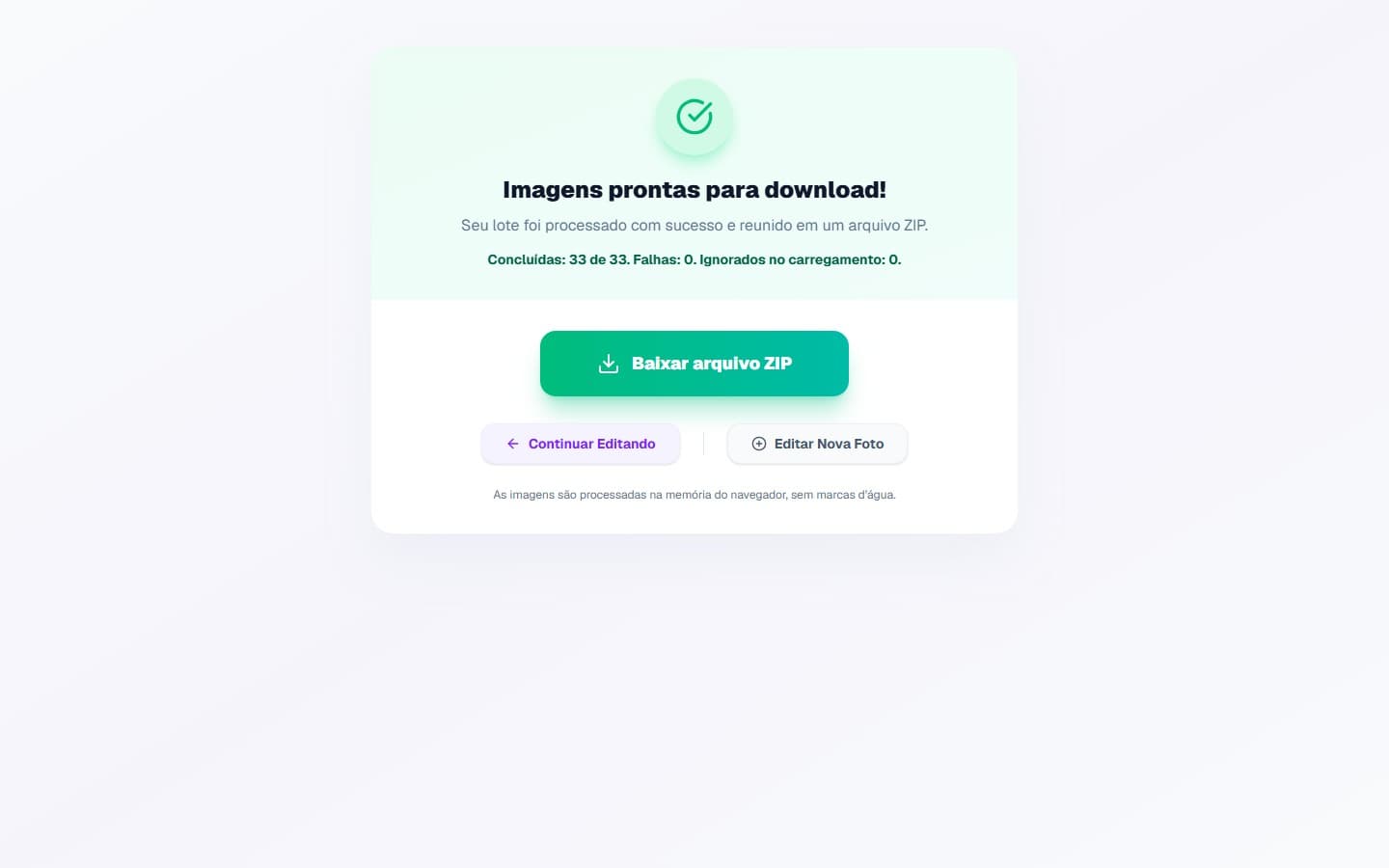
( The interface )
Current tool interface
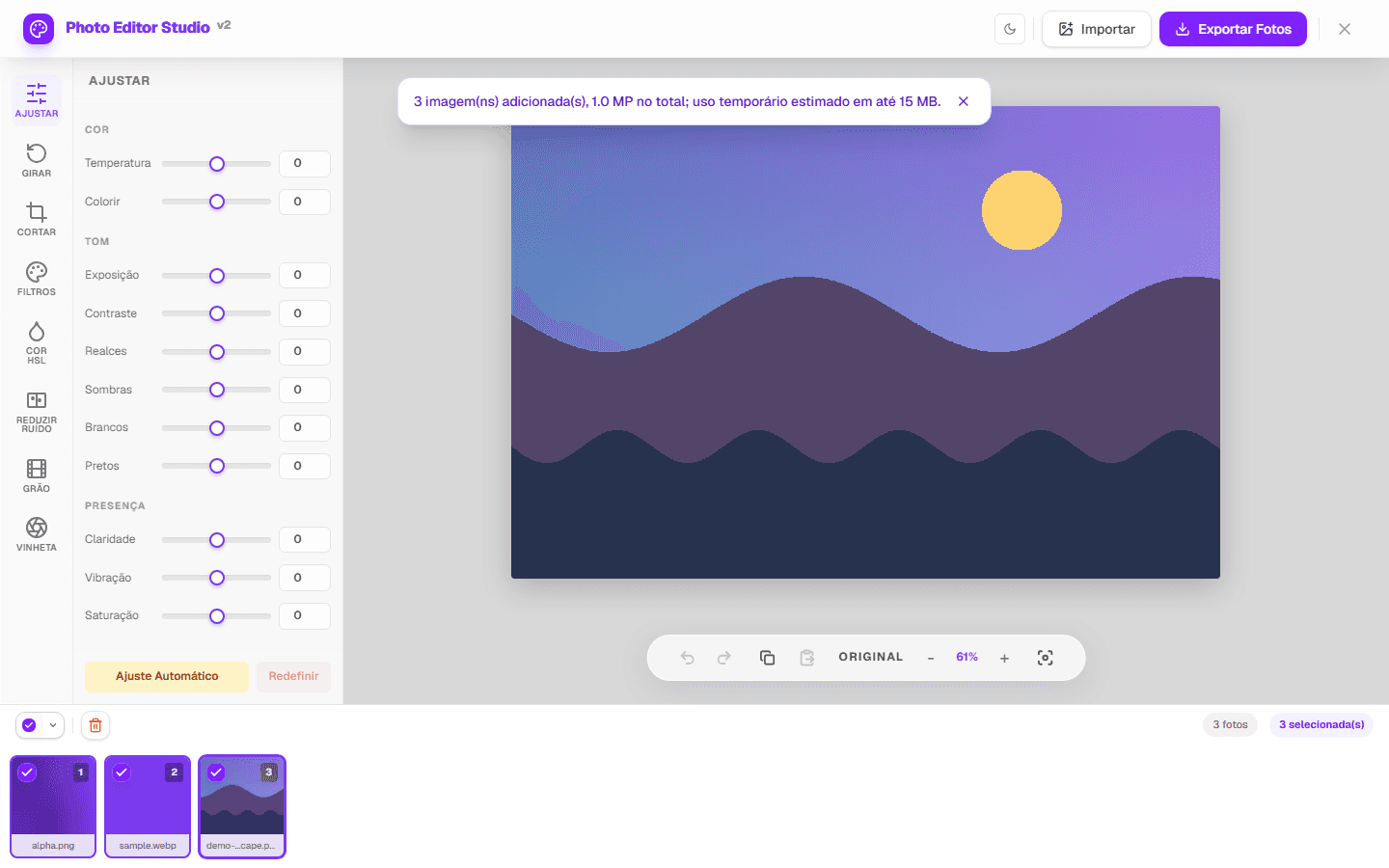
( What it does )
Batch workflow features
- 01
Set selection
Select all, edited, unedited or individual photos.
- 02
Shared adjustments
Copy settings or run automatic adjustment for selected images.
- 03
Tracked export
Summaries show count, format, dimensions and failures around processing.
( What people use it for )
Where batch editing saves steps
- ( 01 )
Small catalog
Standardize dimensions and format while reviewing exceptions individually.
- ( 02 )
Event gallery
Apply a shared base and manually correct photos with different light.
- ( 03 )
Web images
Resize the set without upscaling smaller sources.
( Where your pixels go )
( Local processing )
Where your image is processed
The editing itself happens in your browser. When you open a file, the browser decodes it into pixels held in the page's memory, and every adjustment is a computation performed on those pixels by your own device's processor. Export re-encodes the result and hands it to the browser as a download. The image file is not uploaded to an editing server for any of these steps.
That is a statement about image processing, not about the page as a whole. Loading this page is a network request like any other, and the page can make further requests: fonts, scripts, and — subject to the choice you make in the consent banner — measurement or advertising. Those requests carry the information any web request carries. The distinction matters, and the Privacy Policy sets out what is collected and when.
- Decoding, editing and export run on your device, using the browser's Canvas APIs.
- The image file is not sent to an editing server as part of the editing workflow.
- The page itself is served over the network and can load consented measurement or advertising.
- Closing the tab discards the working copy held in the page's memory.
( Questions? Answered )
Frequently asked questions
How many photos can I edit at once?
No count is guaranteed. Dimensions, format, memory and browser determine practical capacity.
Does ZIP use an external service?
No. The test suite verifies that the ZIP flow does not request an external ZIP library.
Must all photos have the same size?
No. Each image can keep its aspect ratio within the chosen maximum dimensions.
( In depth )
What happens when a browser opens many images at once
Batch editing in a browser is bounded by a resource that is easy to forget: the memory needed to hold decoded images. The size of the files on disk is a poor guide to that cost, and understanding the difference explains both why no fixed image count can be promised and how to work within whatever your device allows.
A file's size on disk is not its size in memory
A JPEG is compressed. Its size on disk reflects how compressible the scene was — a photograph of a clear sky compresses far better than one of foliage — and has only a loose relationship to its pixel dimensions. To edit an image, the browser must first decode it, and a decoded image is stored uncompressed: four bytes for every pixel, covering red, green, blue and alpha.
The arithmetic is worth doing once. A 12-megapixel photograph occupies roughly 48 megabytes once decoded, whatever its file size was. Twenty such images is nearly a gigabyte of decoded pixels before any editing has taken place. A 3 MB file and a 300 KB file of the same dimensions cost exactly the same amount of memory once open.
This is the single most useful thing to know about batch capacity. The number that matters is total megapixels, not total megabytes, and a folder of small files can be more demanding than its size suggests if the images are large in dimension.
Editing needs more than one copy
A single decoded copy is the floor, not the total. Showing a before-and-after comparison requires the original alongside the edited version. Undo history holds previous states. Export allocates a further buffer to render into, and re-encoding to JPEG or PNG needs room for the compressed result while the uncompressed source is still held.
Bundling several outputs into a ZIP adds another layer, because the archive is assembled in memory before it is handed to the browser as a download. At the moment of export, a batch can be occupying several times the memory that its decoded images alone would account for.
This is why memory pressure usually appears at export rather than at import. A batch that loaded without difficulty can fail when exported, because export is the point at which the most copies exist simultaneously.
Why no tool can honestly promise a number
The ceiling depends on variables the page cannot see. Available system memory differs by device and by what else is running. Browsers impose their own per-tab limits, and those limits differ between browsers and between desktop and mobile builds of the same browser. Mobile operating systems will discard a background tab under pressure without warning. The images themselves vary in dimension by an order of magnitude between a phone screenshot and a full-frame camera file.
Any specific claim — fifty images, three hundred images — would therefore be true on some device and false on another, which is why this site publishes a reproducible benchmark with the hardware and the images named rather than a headline figure. A measurement you can repeat is worth more than a number you cannot check.
The honest guidance is procedural rather than numerical: start with a small group, observe how the device responds, and increase from there. The point at which the interface becomes sluggish is a reliable signal that you are approaching the limit for that session, and it arrives before an outright failure.
Deciding what a batch should contain
The efficiency of batch editing comes from the images sharing a problem. A set photographed in one location under steady light needs one correction repeated, and applying it collectively is straightforward. A set assembled from several locations and times of day needs different corrections, and a shared adjustment will be wrong for most of them — the work is not actually batchable, and forcing it produces a set that all needs fixing individually afterwards.
This suggests grouping by lighting condition rather than by folder or by event. Photographs taken indoors under tungsten light form one batch, the same event outdoors forms another, and the two will want different white balance even though they belong to the same occasion.
Purely mechanical operations are the exception and batch well regardless of content. Resizing a set to a maximum dimension, converting a format, or applying a fixed crop ratio depends on the image's dimensions rather than its light, and can be applied to a mixed set without reviewing each result.
Reviewing a batch without opening every file
The risk in batch editing is a systematic error applied uniformly and noticed late. Checking every image defeats the purpose; checking none invites reprocessing the set. The middle path is to review the extremes: the darkest image in the batch, the brightest, and any frame whose subject differs from the rest. A shared correction that holds at both ends of the range will generally hold in the middle.
It is also worth inspecting the outputs rather than the previews when the export changes format. A preview shows the edit; it does not show what JPEG compression did to it, or what happened to transparency when an image with an alpha channel was written to a format that has none. Opening two or three exported files is a short check that catches a category of problem the preview cannot show.
( Keep going )
Continue with the right workflow
- ( 01 )Understand adjustmentsReview controls before applying them across a batch.Read
- ( 02 )Batch guideFollow a selection, review and export workflow.Read
- ( 03 )Batch benchmarkReview reproducible measurements, ranges, and raw data.Read
- ( 04 )Local processingSee the pixel path and the page's optional connections.Read
- ( 05 )Editor helpResolve skipped files, memory, preview, and ZIP issues.Read
( Ready when you are )
Prepare your batch
Start with a few images, inspect the reported load and validate results before expanding the set.