( Free · in the browser · no sign-up )
Rotate and straighten photos online.
Rotate. Flip. Straighten. 90° each way. An exact angle. Mirror it.
Rotate by 90 degrees, set another angle or flip the image, then export a new copy.
You can also drag and drop one or multiple images in this area.•Accepted inputs: JPEG, PNG, WEBP, GIF and BMP when the browser can decode them. Export is available as JPEG and PNG, and as WEBP when the browser supports that encoding.
Image editing runs in the browser. The site can still make technical requests and, subject to your consent, load measurement or advertising. Read the Privacy Policy.


- 01No installation
- 02In-browser editing
- 03Preview before export
- 04No sign-up
( How it works )
Rotate a photo in 3 steps
- ( 01 / 03 )
1. Open the image
Choose a compatible file or use the demo photo.
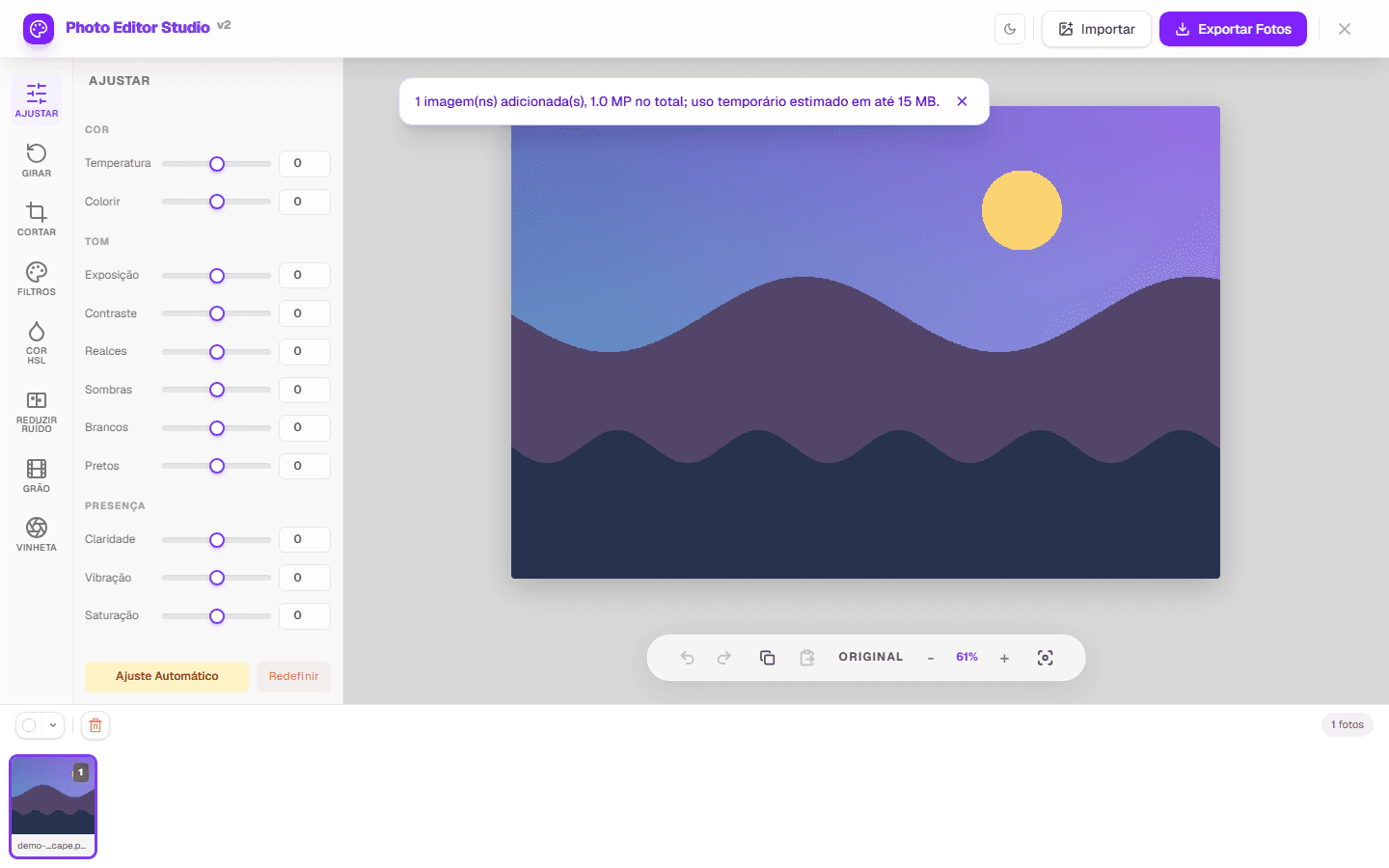
- ( 02 / 03 )
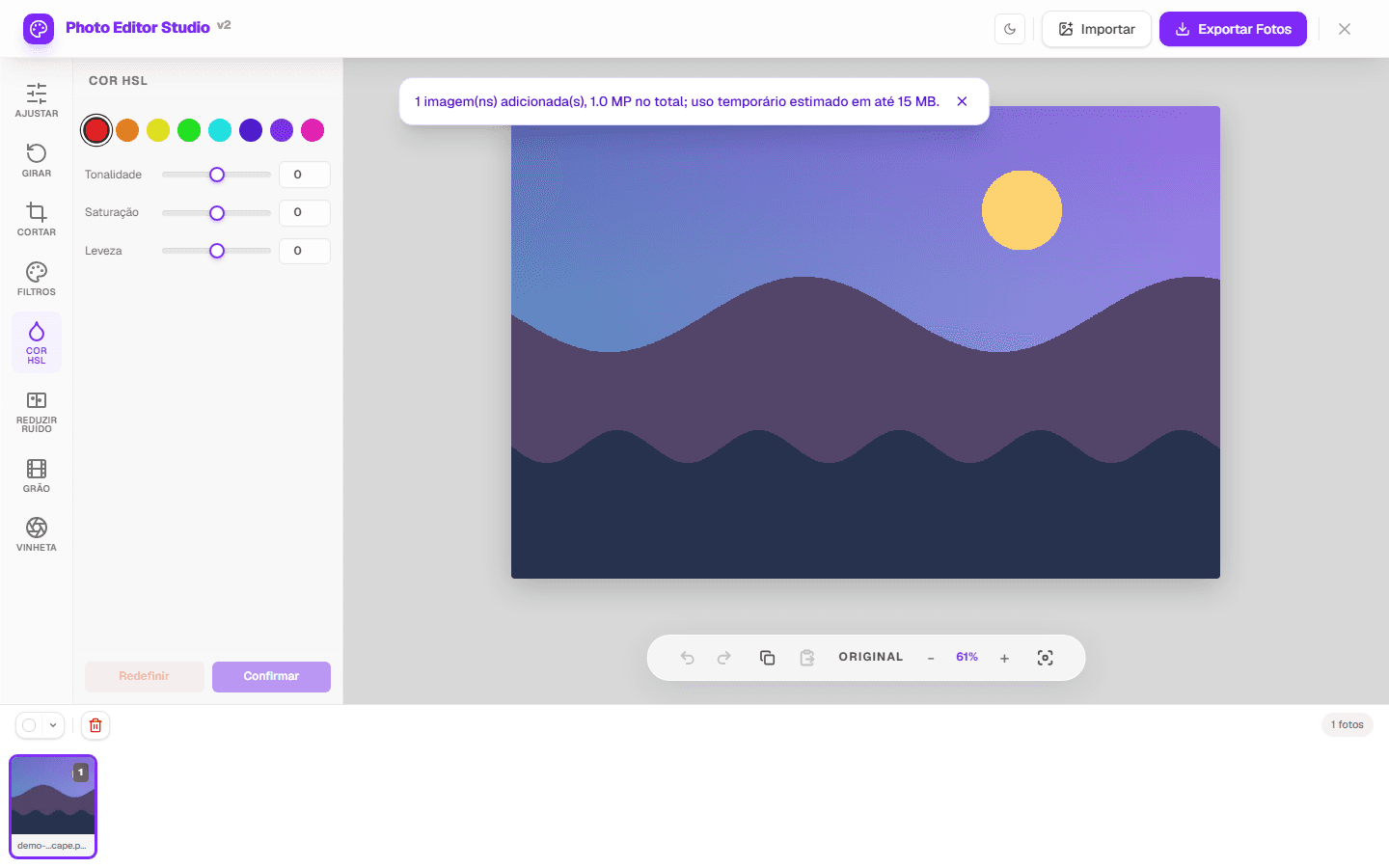
2. Set orientation
Use 90-degree buttons, enter another angle or apply a flip.
- ( 03 / 03 )
3. Confirm and export
Confirm the transform, inspect the preview and save as JPEG or PNG, or as WEBP when the browser supports it.

( The interface )
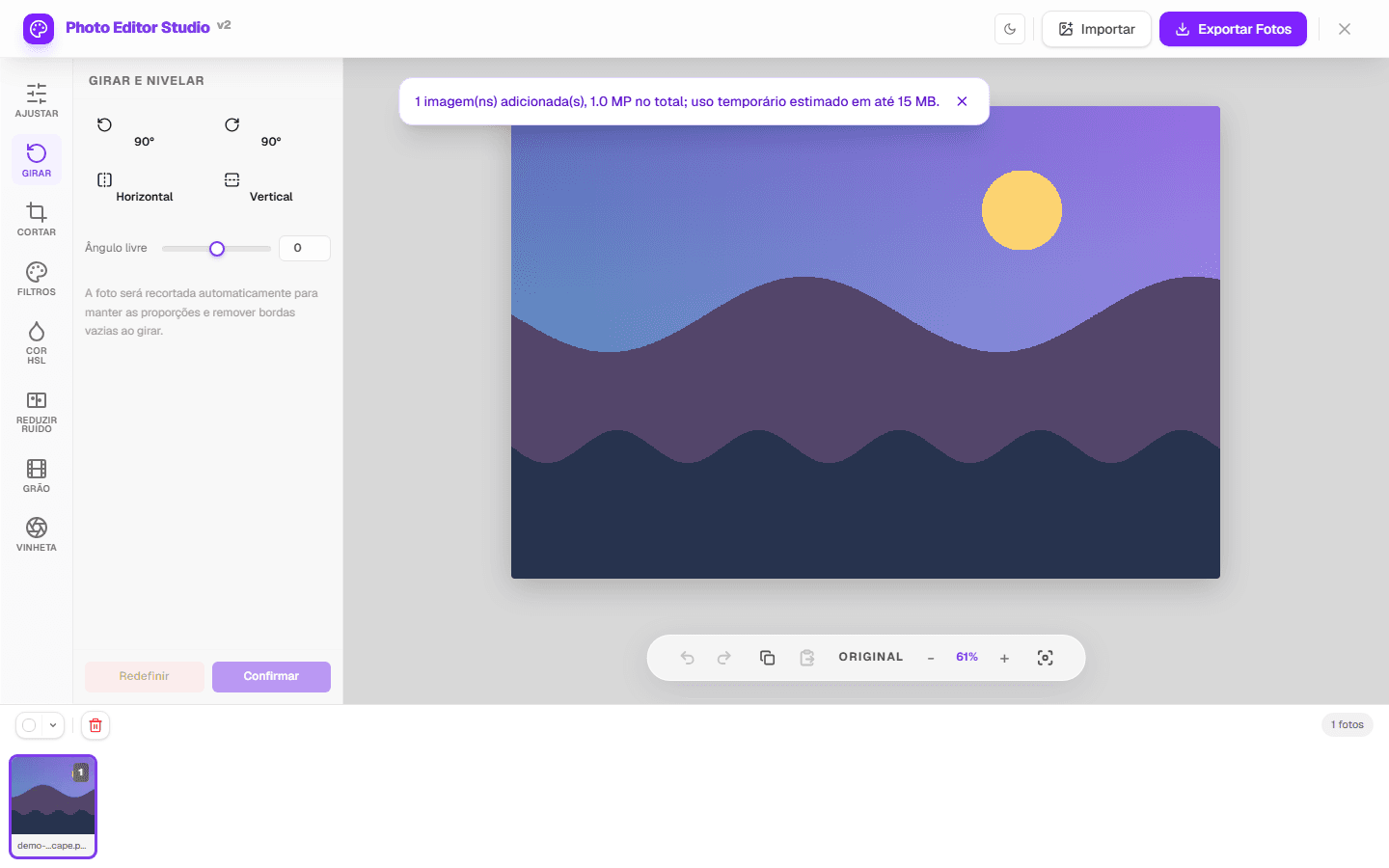
Current tool interface
( What it does )
Available transformations
- 01
90-degree rotation
Shortcuts rotate left or right and swap dimensions when required.
- 02
Adjustable angle
A numeric control corrects angles outside right-angle turns.
- 03
Mirroring
Flip horizontally or vertically and confirm before export.
( What people use it for )
Common uses
- ( 01 )
Wrong orientation
Correct camera or phone images that open sideways.
- ( 02 )
Horizon line
Use a small angle to reduce visible tilt.
- ( 03 )
Mirrored composition
Test horizontal reading direction and compare before saving.
( Where your pixels go )
( Local processing )
Where your image is processed
The editing itself happens in your browser. When you open a file, the browser decodes it into pixels held in the page's memory, and every adjustment is a computation performed on those pixels by your own device's processor. Export re-encodes the result and hands it to the browser as a download. The image file is not uploaded to an editing server for any of these steps.
That is a statement about image processing, not about the page as a whole. Loading this page is a network request like any other, and the page can make further requests: fonts, scripts, and — subject to the choice you make in the consent banner — measurement or advertising. Those requests carry the information any web request carries. The distinction matters, and the Privacy Policy sets out what is collected and when.
- Decoding, editing and export run on your device, using the browser's Canvas APIs.
- The image file is not sent to an editing server as part of the editing workflow.
- The page itself is served over the network and can load consented measurement or advertising.
- Closing the tab discards the working copy held in the page's memory.
( Questions? Answered )
Frequently asked questions
Does a 90-degree turn change dimensions?
Yes. Width and height swap after confirmation and export.
Can I correct only a few degrees?
Yes. The panel includes an angle field as well as 90-degree shortcuts.
Is the original overwritten?
No. The editor creates a new output for download.
( In depth )
Orientation, angle, and what rotation costs
Rotation covers two operations that look similar and behave very differently. Turning an image by a quarter turn rearranges pixels without altering any of them. Turning it by three degrees recalculates every pixel in the frame. Knowing which one you are performing explains most of what happens to the file.
Why phone photographs arrive sideways
A camera sensor is a fixed rectangle with a fixed reading order. When you turn a phone or camera on its side, the sensor does not turn with respect to the image it records — it records the same rectangle of pixels regardless of how the device is held. What the camera does instead is note the orientation of the device and write it into the file as an EXIF metadata field.
That field is an instruction to whatever displays the file: rotate by this amount before showing it. Software that reads the field shows the photograph the right way up. Software that ignores it shows the raw pixels, which are sideways. This is why the same file can appear correct in one application and rotated in another, and why an image can look fine until it is uploaded somewhere.
Applying a rotation in an editor and exporting resolves the ambiguity, because the exported pixels are in the orientation you chose rather than depending on a metadata field being honoured. The corollary is that a file whose EXIF orientation was being applied correctly does not need rotating at all — turning it in an editor would rotate it twice.
Quarter turns move pixels; other angles invent them
Rotating by 90, 180 or 270 degrees is a rearrangement. Every pixel in the source maps exactly onto a pixel position in the result — the grid is square, so a quarter turn maps the grid onto itself. No pixel value is calculated, nothing is averaged, and the image contains precisely the same values in a different order. Width and height swap for the odd quarter turns.
Rotating by any other angle is a resampling. The rotated grid no longer lines up with the pixel grid, so each output pixel falls between input pixels and its value has to be estimated from the neighbours it sits among. This is interpolation, and it is a form of averaging: fine detail is softened slightly, and a hard edge that was one pixel wide becomes a transition spread across two or three.
The effect of a single small rotation is subtle and usually invisible at normal viewing sizes. It becomes visible when rotations are applied repeatedly to an already-rotated export, because each pass averages the averages of the last. Make the angle decision once, within a single editing session, rather than nudging an exported file several times.
The corners have to go somewhere
Rotating a rectangle by an angle that is not a multiple of 90 degrees produces a shape that is no longer axis-aligned, and the result has to be fitted back into a rectangle. There are two ways to do that and both cost something. Keeping the whole rotated image means the output rectangle is larger and its corners contain areas that were outside the original frame — transparent in a format that supports it, and a solid colour in one that does not.
Cropping to the largest rectangle that fits entirely inside the rotated image avoids the empty corners and loses the edges of the frame instead. How much is lost grows quickly with the angle: a two-degree correction on a typical frame costs a few percent of each dimension, while ten degrees costs a substantial band around the whole image.
This is the practical argument for correcting tilt at the point of composition rather than later. A photograph framed with a couple of degrees of margin around the subject can absorb a straightening correction without losing anything that mattered. One framed tightly cannot, and the correction becomes a choice between a tilted horizon and a lost edge.
Why a small tilt is more noticeable than a large one
A horizon two degrees off level reads as a mistake. The same image rotated fifteen degrees reads as a deliberate angle. The difference is that viewers carry a strong internal reference for horizontal — provided by the horizon itself, by architecture, by the vertical of standing figures — and a small deviation is measured against that reference and found wanting. A large deviation is too far from the reference to be read as a failed attempt at level, so it is read as intent.
The consequence is that a near-level horizon is worth correcting precisely rather than approximately. Getting from two degrees to half a degree removes the sense that something is off; getting from two degrees to one degree usually does not, because one degree is still within the range the eye measures against its reference.
The most reliable reference in a photograph is rarely the horizon, which can be genuinely uneven. Vertical lines are better: door frames, window edges, lamp posts and the corners of buildings are built plumb, and aligning to them corrects the frame more dependably than judging a coastline.
Flipping is not rotation, and it is not always harmless
A horizontal flip mirrors the image across its vertical axis. Like a quarter turn, it is a rearrangement rather than a recalculation — no pixel values change. It is sometimes used to change the direction a composition reads, since a viewer accustomed to reading left to right tends to enter an image from the left.
It stops being harmless the moment the frame contains text, which becomes mirrored and unreadable, or anything whose asymmetry is factual: signage, logos, the side of a road traffic drives on, the hand someone writes with, the buttons on a jacket. A flipped photograph of a street scene is a photograph of a place that does not exist.
The safe rule is to check the frame for text and for anything a viewer might treat as a record before flipping, and to treat the flip as a compositional tool for images where nothing in them makes a factual claim about direction.
( Ready when you are )
Correct the orientation
Open the photo, choose the angle and inspect the edges before exporting.