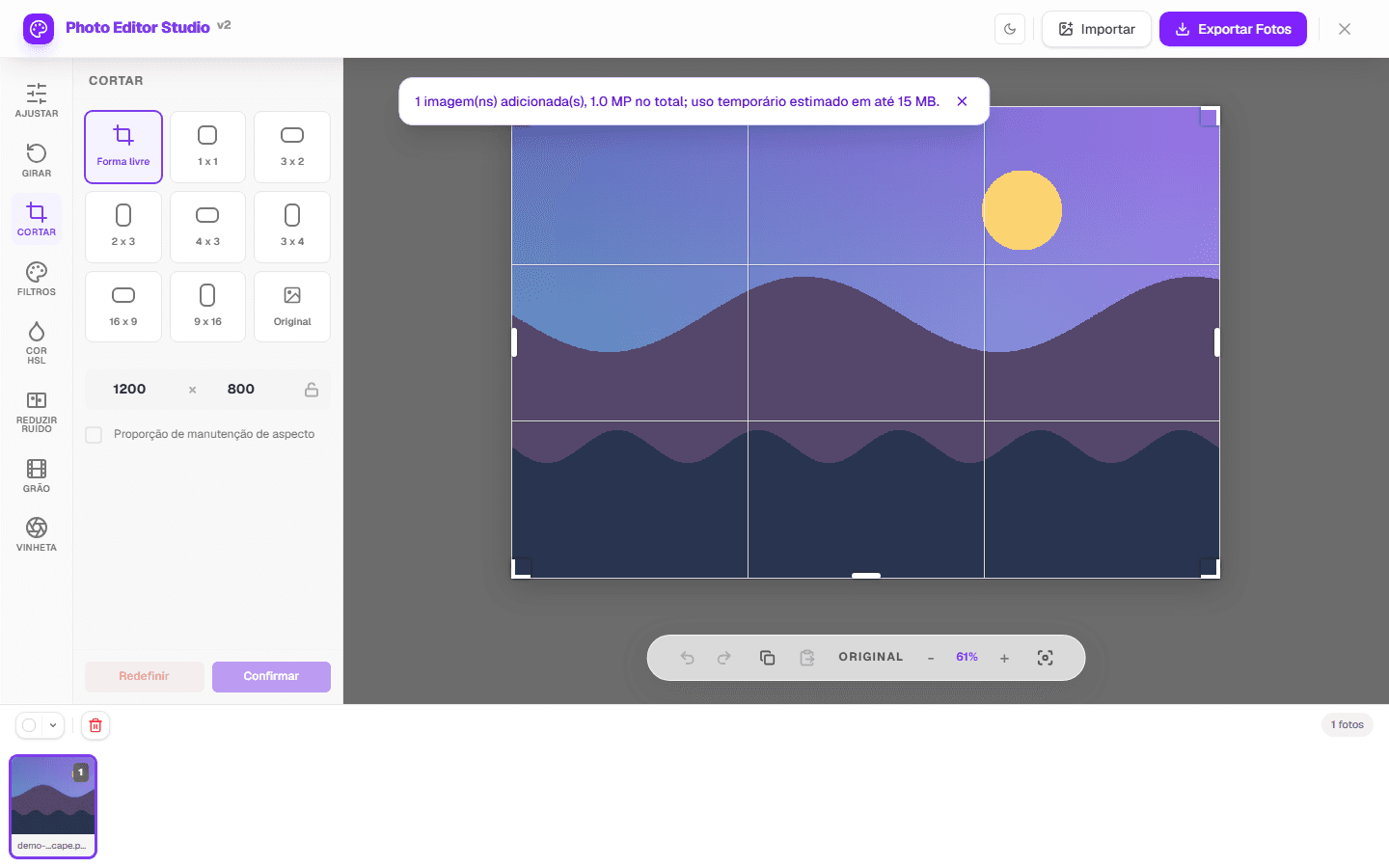
Cropping a photo online changes its visible area and final dimensions. PhotoEditor.Studio supports free crop, aspect-ratio presets, and entered width/height within the loaded image bounds.
When to crop and when to resize
Crop removes edge pixels to change framing. Resize keeps the composition and changes output pixel count. Crop first, then use export resizing only when the destination requires maximum dimensions.
| Goal | Control | Check |
|---|---|---|
| Remove an edge | Free crop | Subject is not cramped |
| Square composition | 1:1 | Subject remains centered |
| Specific destination | Entered dimensions | Values fit the image |
Crop workflow
- Open an image on the Crop photo page.
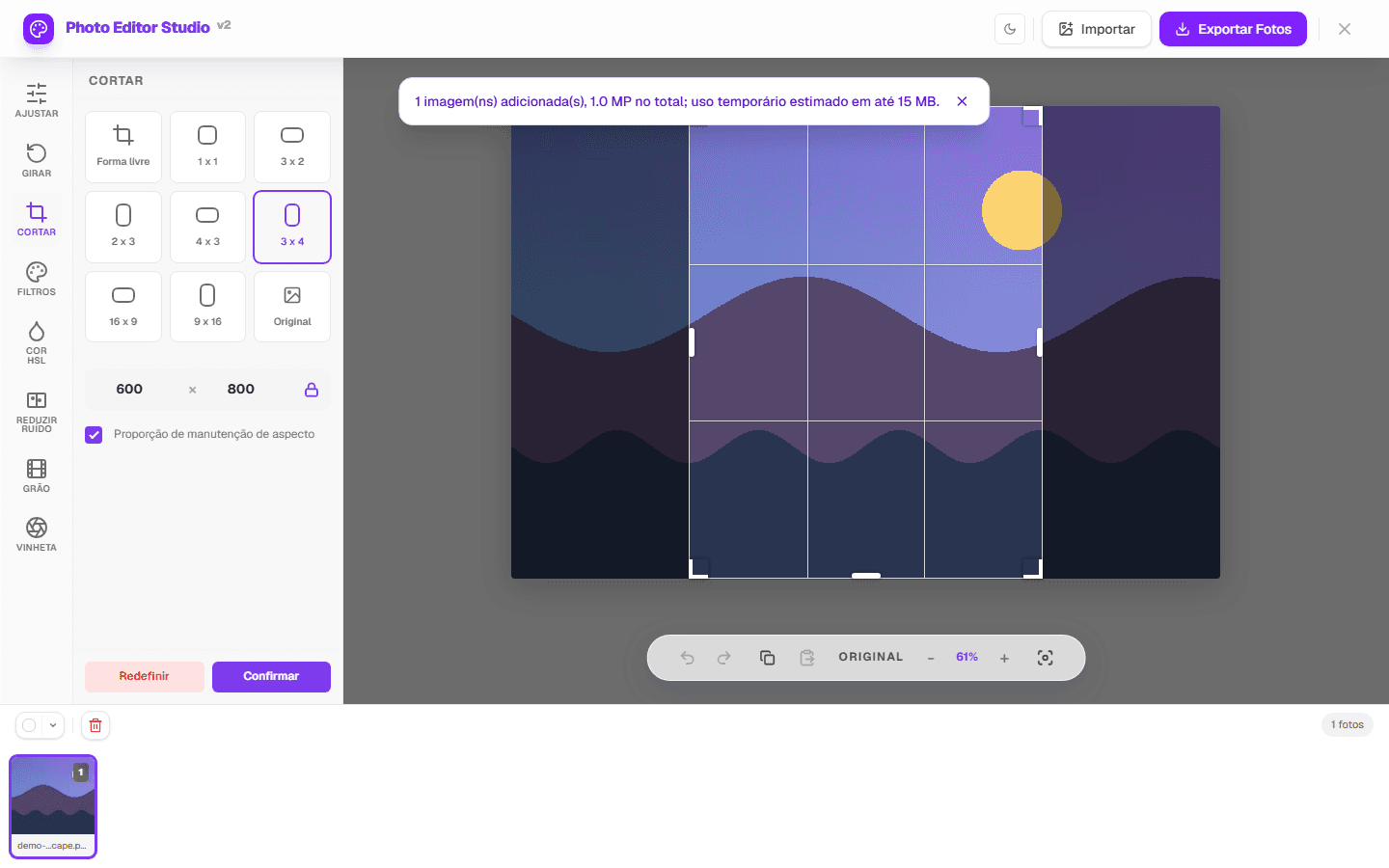
- Choose Free, Original, or a ratio such as 1:1, 4:3, 3:2, 16:9, or 9:16.
- Move and resize the visible area while keeping useful space around the subject.
- Confirm the crop and compare with the original.
- Choose a format and optional resize settings on export.
Limits and method
- The current crop is destructive within the edit; retain the original file.
- The feature does not recognize faces, products, or important regions.
- Orthogonal rotation can swap width and height.
- JPEG is re-encoded; transparency needs PNG or WEBP output when the browser supports it.
- EXIF and color profiles may not be retained.
Tests verify dimensions, real pixel changes, transparency, and output signatures. The image at the top was captured from the running tool.
Corrections: use the contact page or see the methodology.